As children become more active online, it’s important to know how to protect them.
1. Open a web browser and go to family.microsoft.com
2. Sign in with your Microsoft account (must be the family organizer).
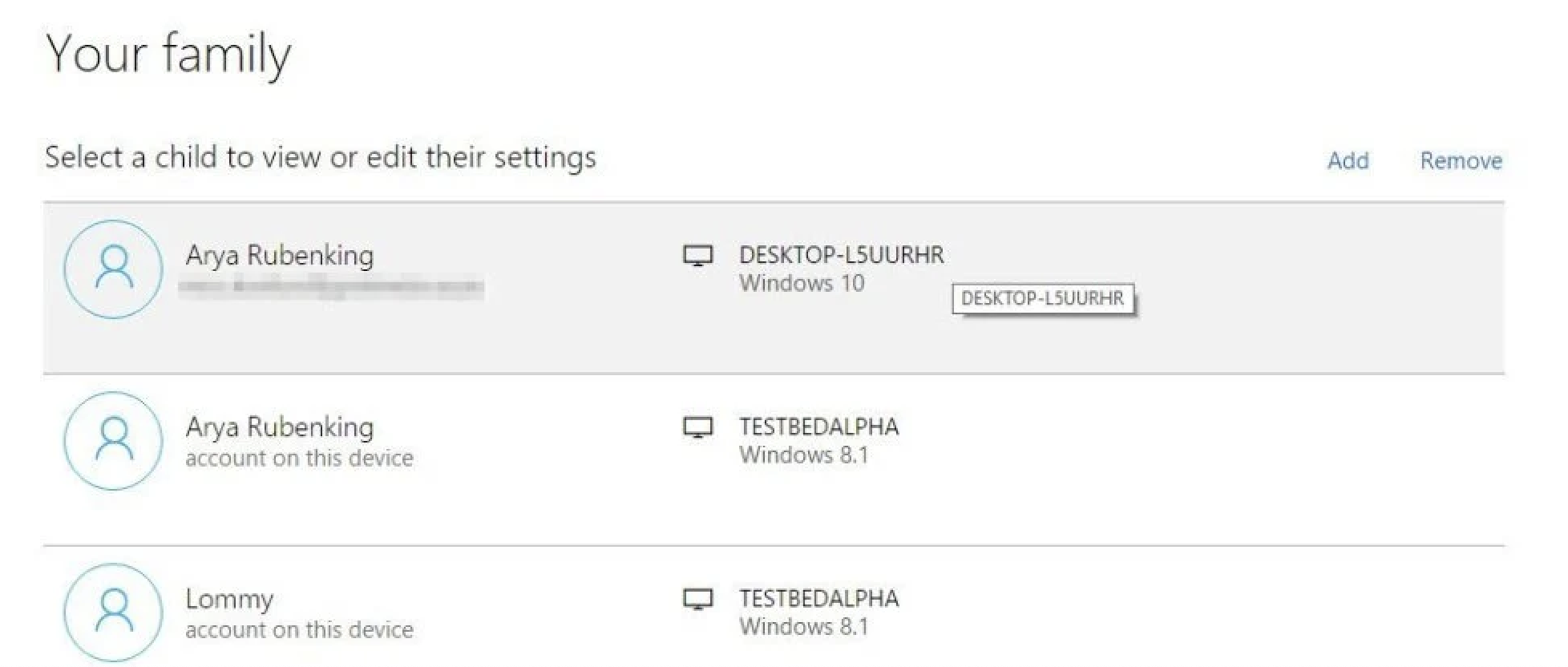
3. Add your child’s account if you haven’t created a family group yet.
1. On the homepage, click your child's name.
2. Select Screen time from the left menu.
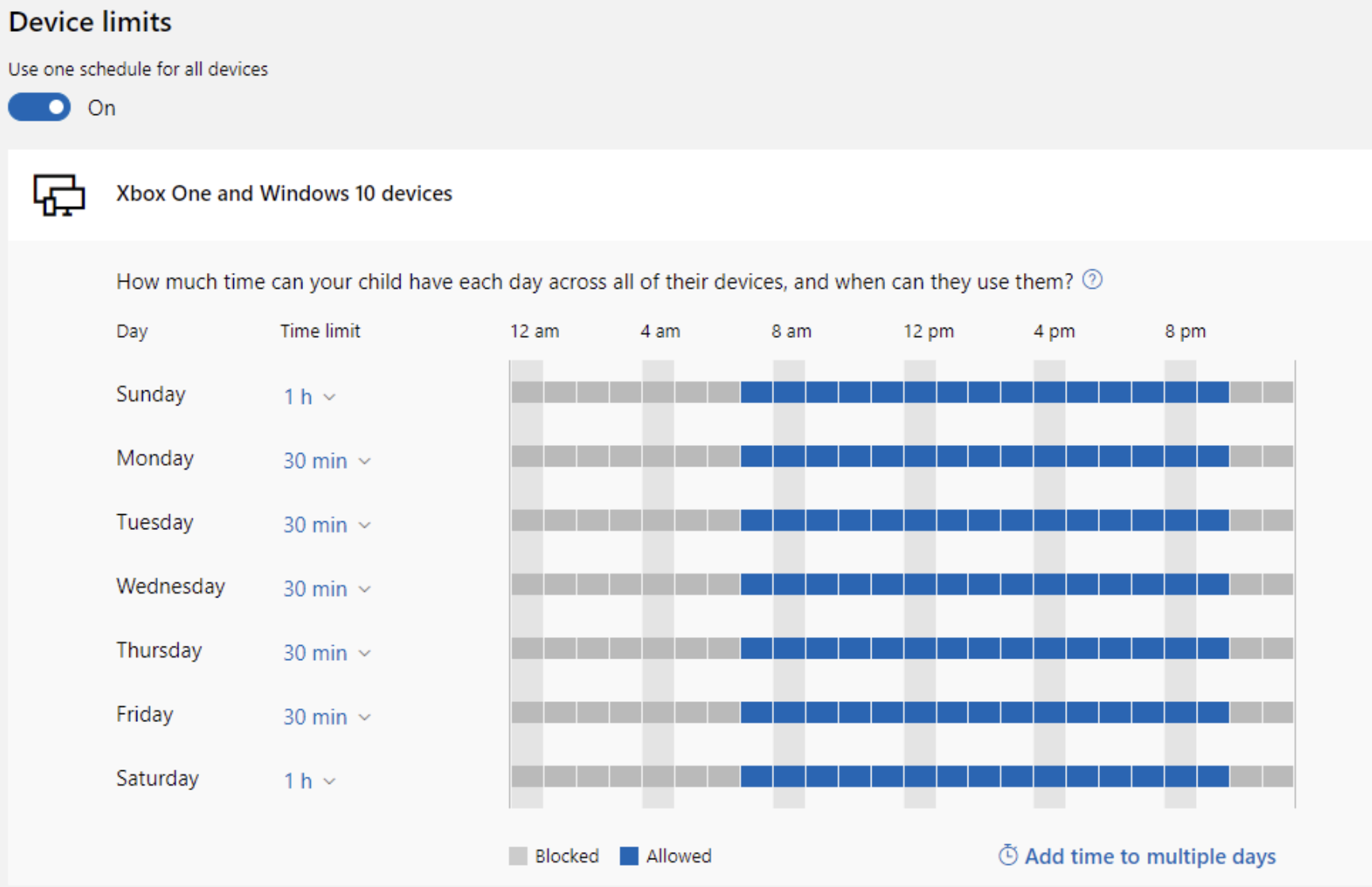
1. Scroll down to Devices and select Windows 10/11 PC.
2. Enable Use one schedule for all devices.
3. Click Edit limits.
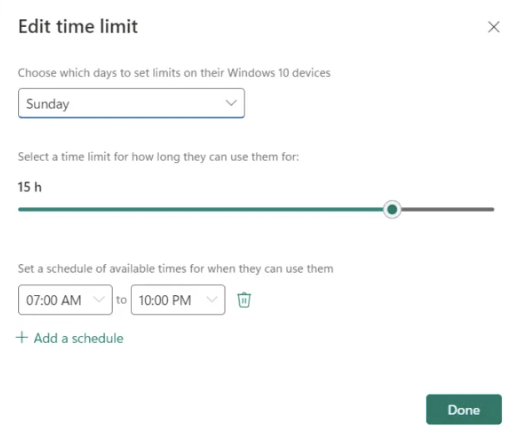
1. Set the allowed screen time for each day.
2. Click Save.
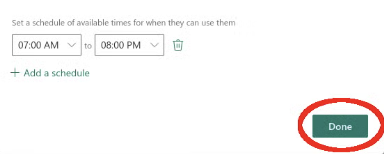
1. Click Add a time slot.
2. For example, allow screen time from 3 PM to 7 PM.
3. Click Save.
1. Children can request more time, and you can approve it.
2. Adjust limits anytime if necessary.
Learn how to set up parental controls on various devices to keep your child safe online.
Understand how to monitor your child's online activity using different tools and apps.
Block inappropriate content and websites by using parental control apps or built-in device settings.